
What We Do
Our Core Areas of Expertise
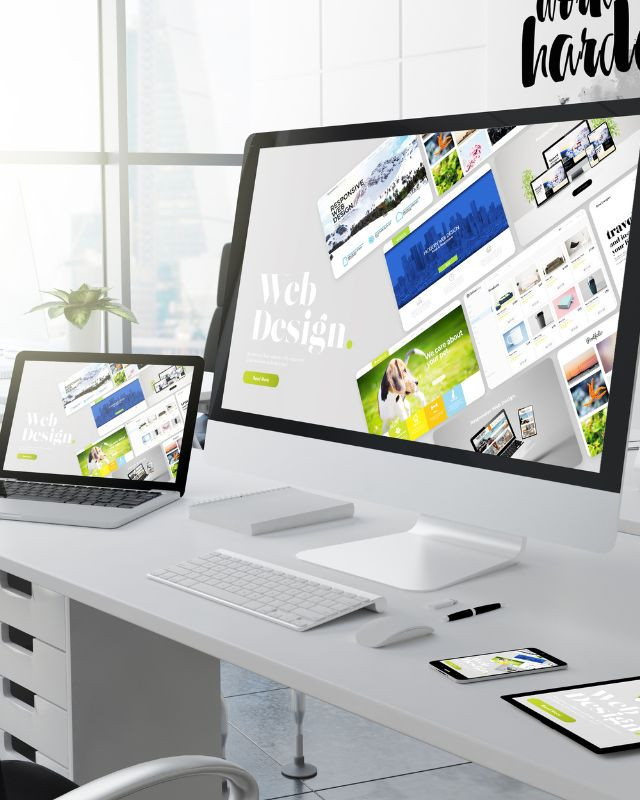
With a strong foundation in user interface design and experience strategy, Ken Moore Design helps companies create digital products that feel seamless and smart. We combine design thinking, technical awareness, and aesthetic precision to deliver elegant and scalable solutions. From wireframes to high-fidelity prototypes, we work across platforms, devices, and industries adapting to your users’ needs and your business ambitions.
Ken Moore Design
Elevating Digital Products with Thoughtful, Human Centered Design
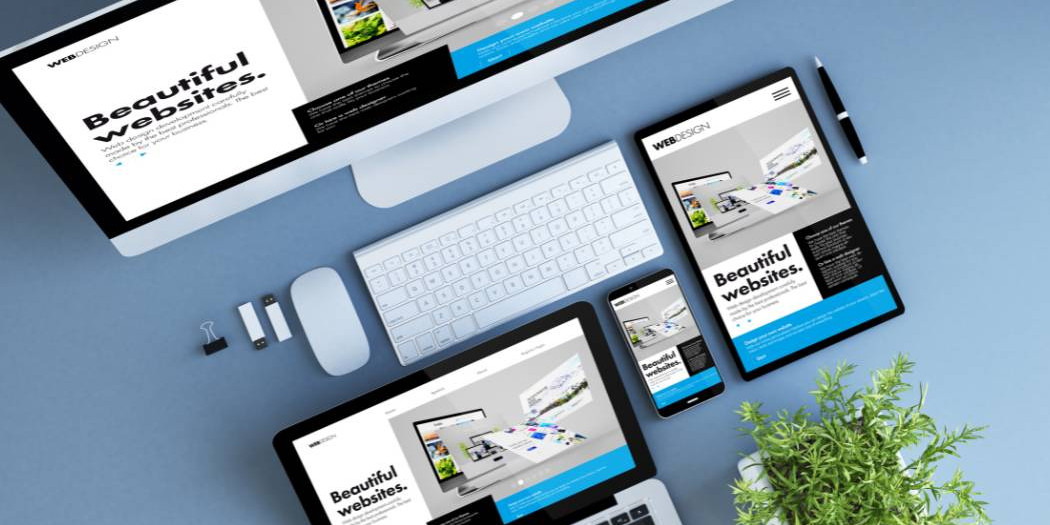
At Ken Moore Design, we believe great design isn’t just about how things look, it’s about how they work. We specialise in crafting digital experiences that are intuitive, purposeful, and deeply aligned with your product goals. Whether you’re building a startup MVP, scaling a SaaS platform, or refining your brand’s digital presence, we bring strategic clarity and world-class design execution to every project.
We don’t chase trends, we design for impact. If you’re looking for a design partner that understands digital product complexity and thrives on clarity, let’s talk.
Let’s Create Something Exceptional
Fill out the form and we’ll get back to you within 24 hours.
Why It Matters
In a crowded digital world, good design isn’t optional, it’s a differentiator. Users expect frictionless experiences, and businesses need scalable design systems that support growth. We partner with founders, marketers, and developers to ensure the user stays at the center without sacrificing innovation or speed.
Trusted by Teams Who Build Boldly
Our design philosophy is grounded in collaboration. Whether you need a solo designer to plug into your team or a strategic partner to lead a new product vision, Ken Moore Design flexes to fit the way you work.
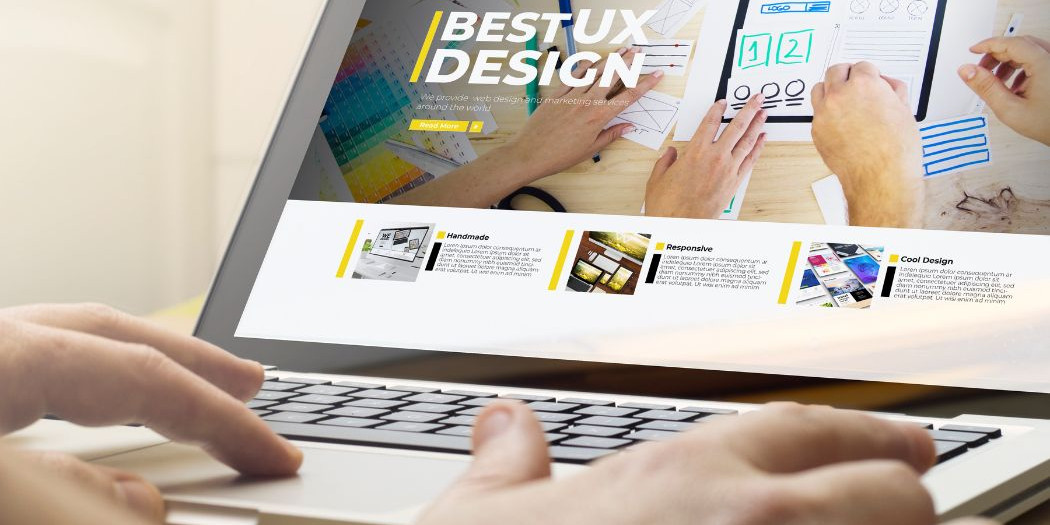
Understanding how to transition from wireframes to polished UI is essential for…
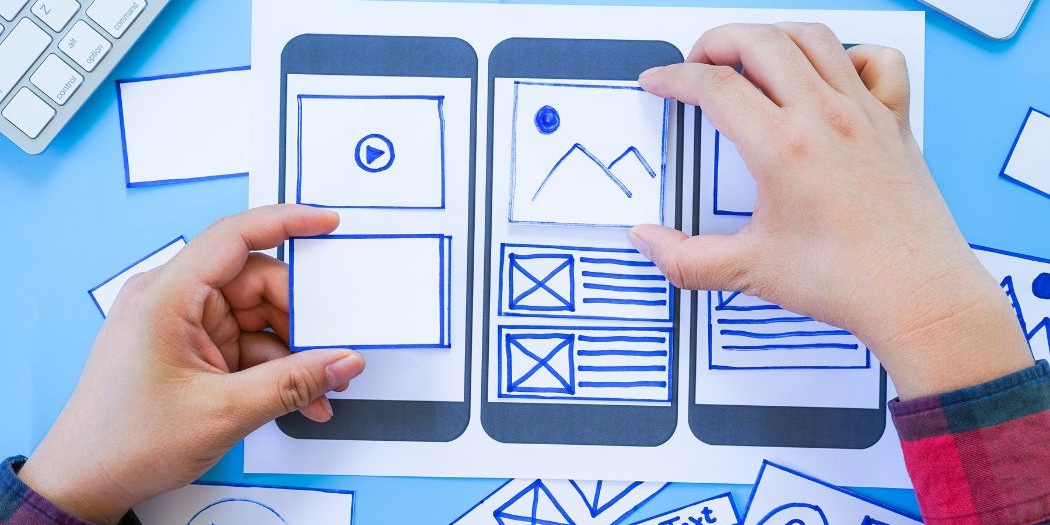
In today’s ultra-competitive digital landscape, having a product that functions…

In an era where digital interactions shape consumer behavior, intuitive design…

In a world where digital interactions define brand perception, User Interface…
Let’s Talk Interface Design
Whether you’re starting from scratch or refining an existing product, we’ll help craft a design your users will love to use.
 © 2025 Ken Moore Design. All rights reserved.